Realms
A Realm is a Phase Two hosted instance of a Keycloak Realm running in one of your dedicated clusters. Every realm belongs to a cluster, and the number of realms you can create depends on the cluster's tier.
Phase Two previously offered single realms on free, shared infrastructure. That offering was discontinued and the shared infrastructure was shut down on 2026-07-30. The Starter cluster tier, which includes a 30-day free trial, replaces it.
Adding a realm to a cluster
Adding a realm happens within the context of a specific cluster.
- Visit the cluster overview page. Locate the cluster you want to add a realm to
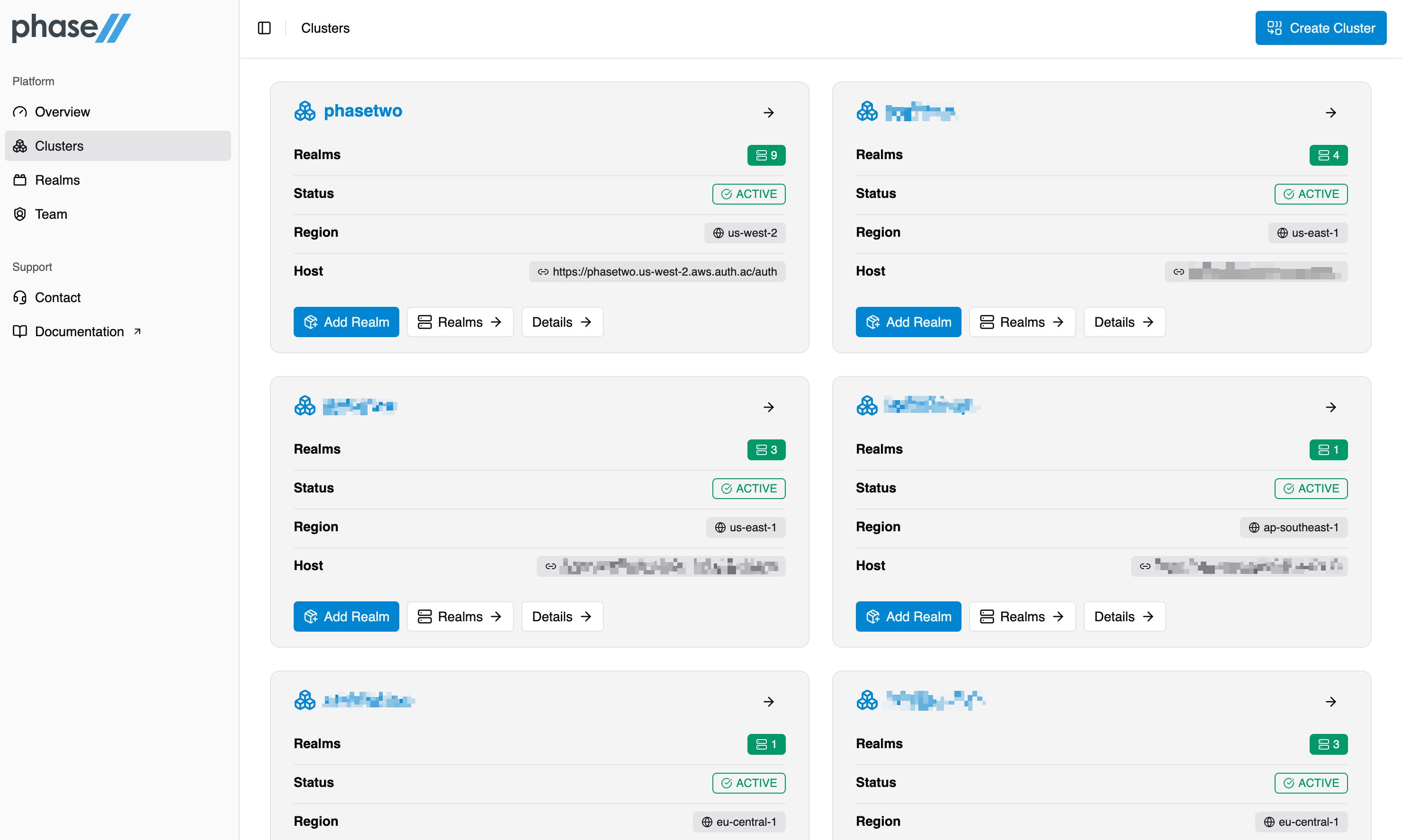
- From the overview page, click "Add Realm" on the cluster card.
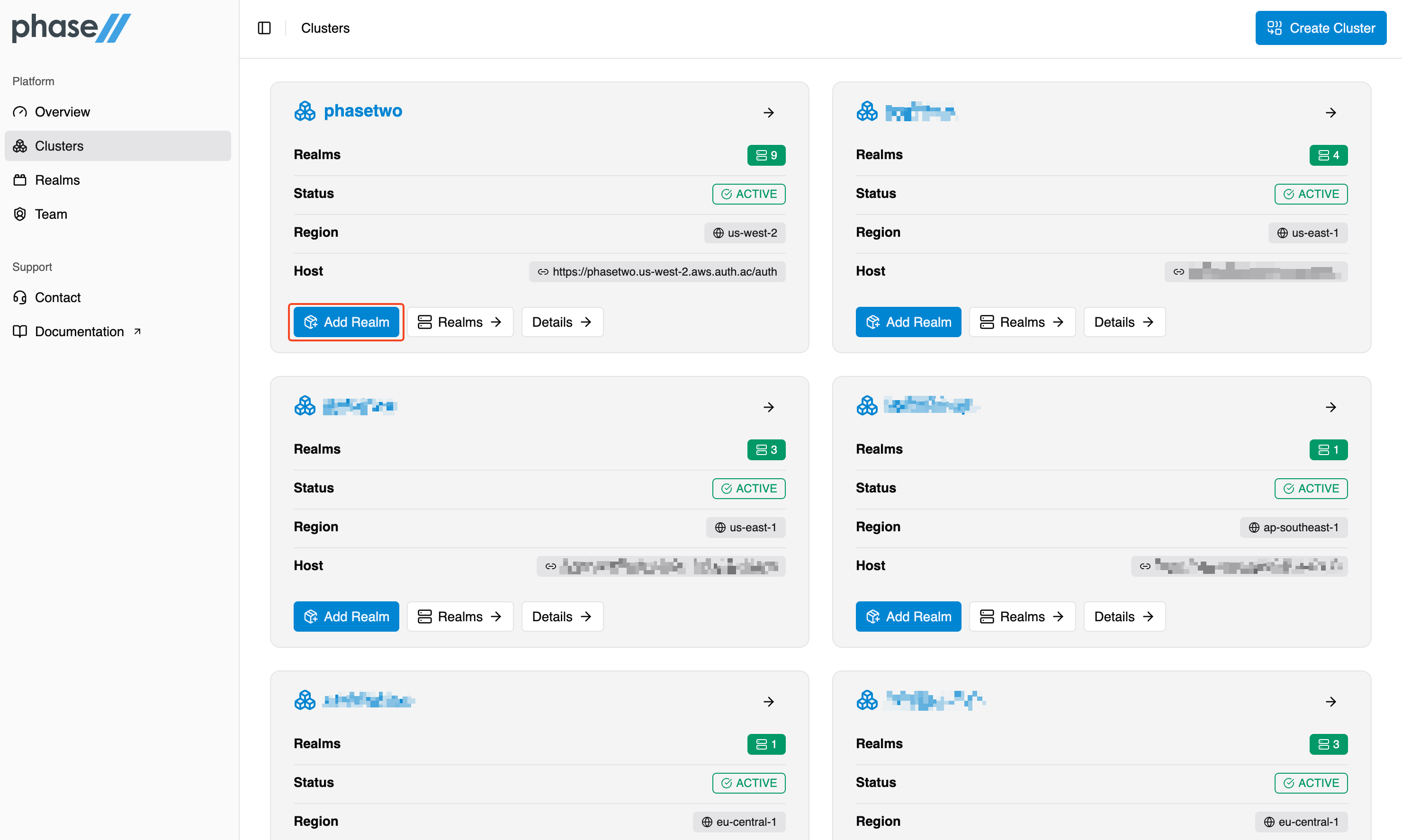
- Or from the Cluster details page, click "Add Realm" in the top right.
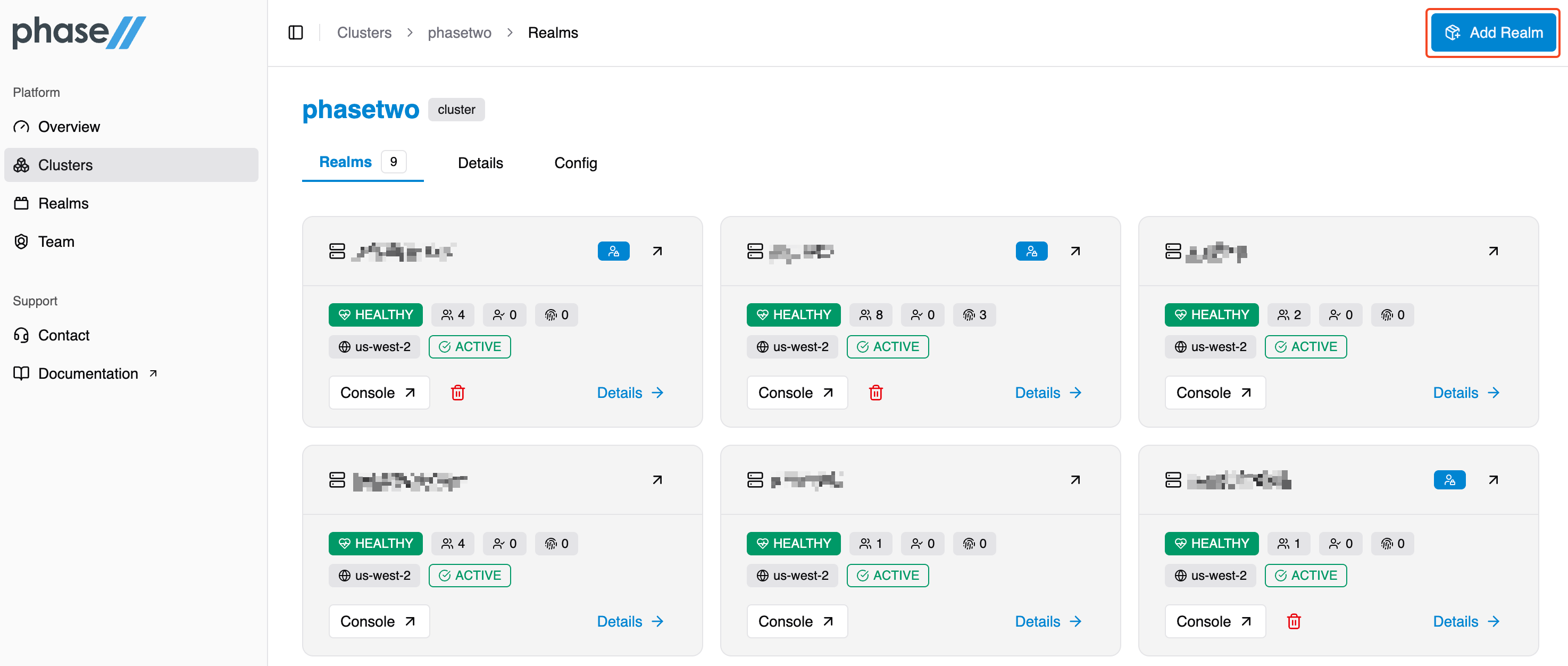
- Enter information and create the realm.
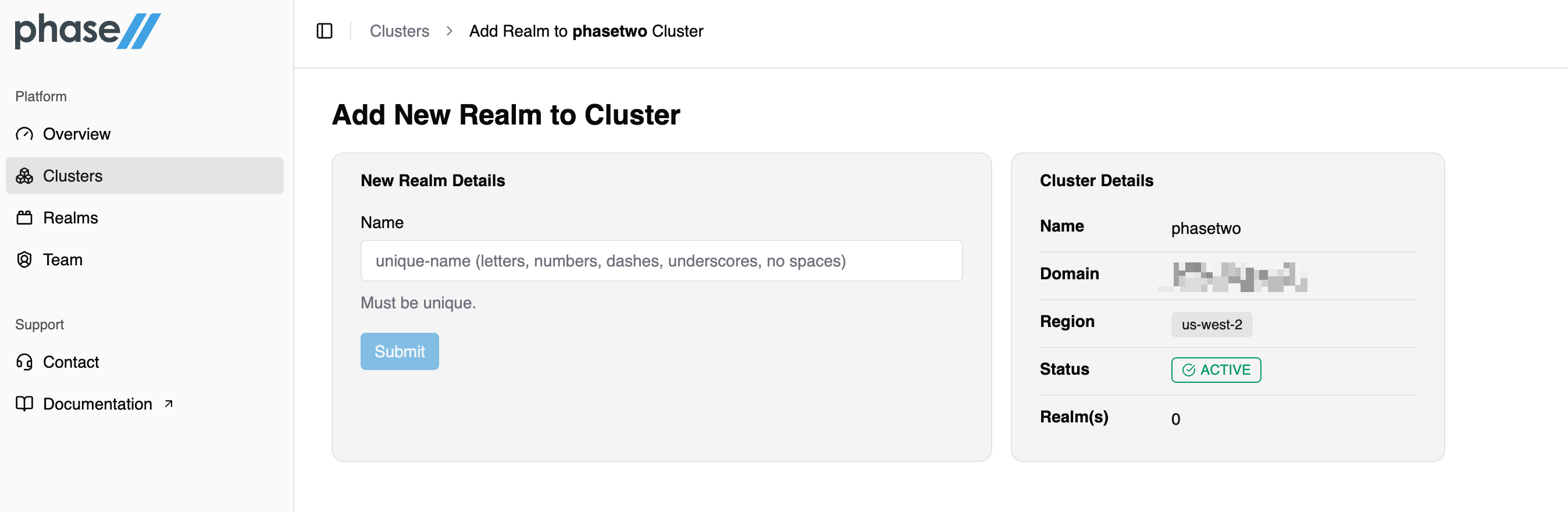
Opening the admin console for a realm
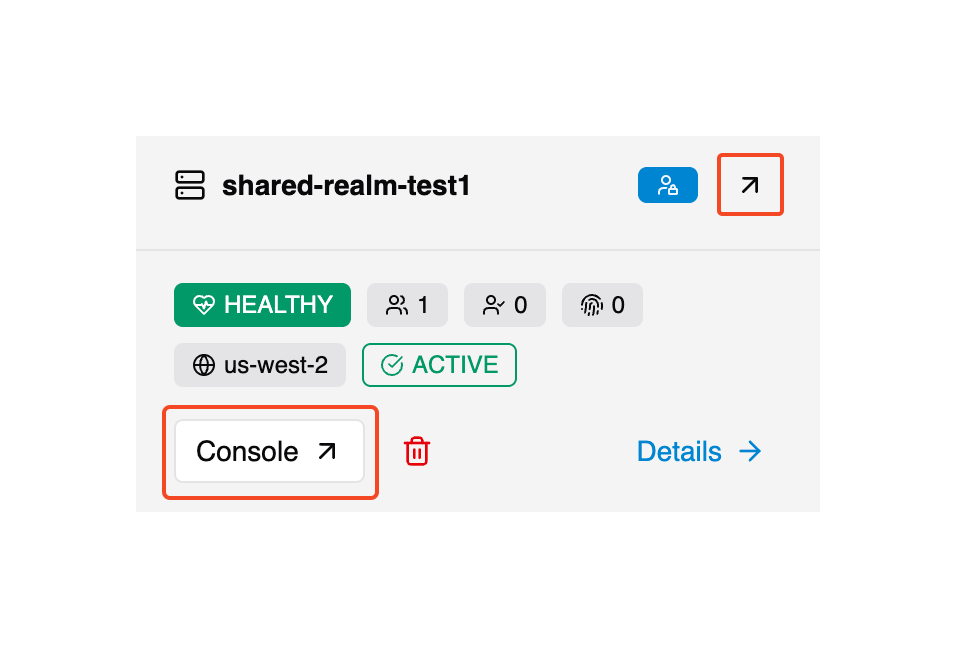
From your cluster's realms view find the realm you want to use. Click the "Arrow" or Console button to create a login link and open it in another browser window. Or on the realm detail view, click Console in the top right.
Realm status
Pending: Realm is pending creation. It should resolve and be ready soon.Active: Realm is ready to be used.Disabled: Realm is currently unavailable.
If you experience an issue with a realm not working, please contact support.
Issues with access to the Admin Console
The Open Console link doesn't work
Access to the Admin Console using the Open Console link requires your Realm to have a user with the username admin, which is automatically created when the Realm is provisioned. In order to maintain access using this mechanism, you must not change this username or its role mappings. Sometimes, if you have Email as username set in your Realm, you might inadvertently change the username by changing the email. If you have lost access and need us to restore the admin account, please email support@phasetwo.io.
You can also create a backup account to access your Realm directly. Create an account with all realm-management Client Roles assigned, and you will be able to log in and use the direct link to the Admin Console below. You can also create admin accounts that are assigned restricted permissions (e.g. only managing users) by selecting a subset of the realm-management Client Roles.
Direct Admin Console URL
You may choose to access the Admin Console directly for users with admin roles. Construct the URL as below:
https://{cluster-host}/auth/admin/{realm-name}/console

- cluster-host: The hostname of the Cluster
- realm-name: The name of the Realm
I've lost access to the Admin Console!
In addition to the above issue with removing the admin account, another restriction is that you cannot change the name of your Realm in the Realm Settings of the Account Console. While it is technically supported in Keycloak, it can produce problems, and causes the metadata we use to log you in from the dashboard to be inaccurate. Because of this, we do not support changing Realm names after they are created. If you need to change the name, you can delete your Realm and create a new one.